

Tracking every Chromebook in a school district requires more than recording serial numbers. Each device moves through a lifecycle: receiving, tagging, configuration, assignment, daily use, repair, collection, redeployment, and retirement. A dependable process connects each stage so the district always knows the device's location, user, condition, and next action.
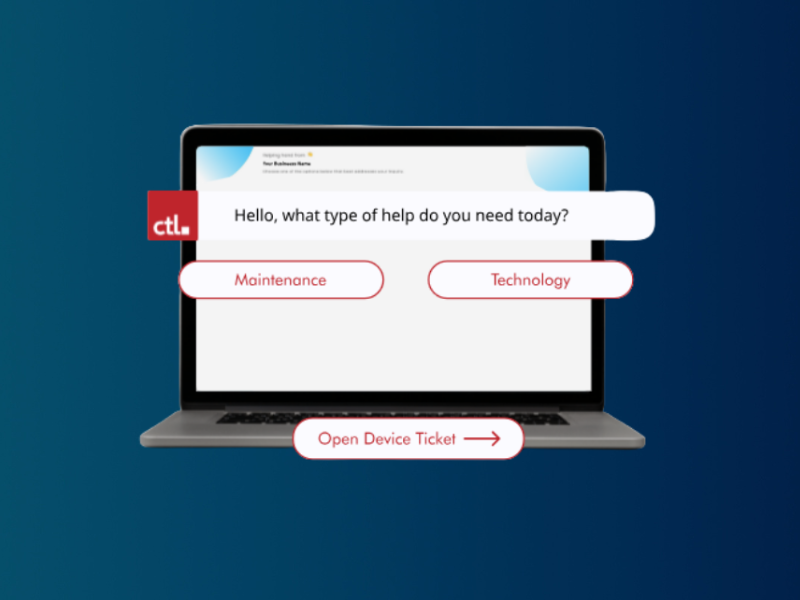
Explore Rocket by CTL and create a more reliable Chromebook tracking process for your schools.
K-12 device lifecycle services
Download our FREE K-12 Asset Management Checklist or start using Rocket today.
Start With Clean Receiving Procedures
Create the asset record as soon as a shipment arrives. Capture the serial number, model, purchase order, acquisition date, school, funding source, warranty, and expected refresh year. Applying the asset tag before deployment prevents untagged devices from entering circulation.
Use Scannable Asset Tags
Barcodes or QR codes allow staff to update records more quickly during deployment, audits, repairs, and collection. Place labels consistently so technicians do not waste time searching for them. Avoid locations where normal use or cleaning will damage the tag.
Connect Devices to Users and Locations
Each active Chromebook should be assigned to a student, staff member, classroom, cart, or inventory location. Include the assignment date and school. When users transfer, withdraw, or change roles, make updating the device record part of the same administrative workflow.
Define Statuses That Drive Action
Useful statuses include available, assigned, loaner, missing, damaged, under repair, awaiting parts, retired, and recycled. Keep the list simple enough that staff use it consistently. A status should tell the next person what needs to happen.
Integrate Repair Tracking
When a device is damaged, record the issue and change its status immediately. Document the repair date, action, cost, parts, warranty coverage, and outcome. A complete history helps determine whether a Chromebook should return to service or be retired.
Run Exception Reports
Instead of manually reviewing every record, focus on exceptions. Review devices with no assigned user, duplicate serial numbers, missing locations, expired warranties, repeated repairs, or old last-updated dates. Exception reports make regular data cleanup manageable.
Conduct Rolling Audits
Audit smaller groups throughout the year rather than attempting one massive annual reconciliation. Scan a cart, classroom, grade level, or school and compare the physical inventory to the system. Rolling audits help detect problems while staff still remember what happened.
Prepare for Student Mobility
Student transfers and withdrawals are common sources of inventory errors. Coordinate with enrollment and school office teams so device returns or transfers are checked before the student's record is closed. Clear ownership between departments prevents devices from disappearing between workflows.
Build a Collection Plan
Before collection, confirm assignments and communicate return requirements. Use separate check-in stations for scanning, physical inspection, charger verification, damage documentation, and routing. Update the record during the transaction, not days later from handwritten notes.
Use Data to Plan Refresh Cycles
Inventory records should support budgeting. Group devices by age, model, repair frequency, warranty status, and expected replacement year. This helps leaders forecast refresh needs and avoid replacing too many devices at once.
Choose the Right Management Tool
A dedicated system reduces the manual effort required to keep Chromebook records accurate. Rocket by CTL gives K-12 schools a free option for organizing device information and improving visibility across the district.
Explore Rocket by CTL and create a more reliable Chromebook tracking process for your schools.
K-12 device lifecycle services
Download our FREE K-12 Asset Management Checklist or start using Rocket today.