
Free

K-12 Asset Management Software

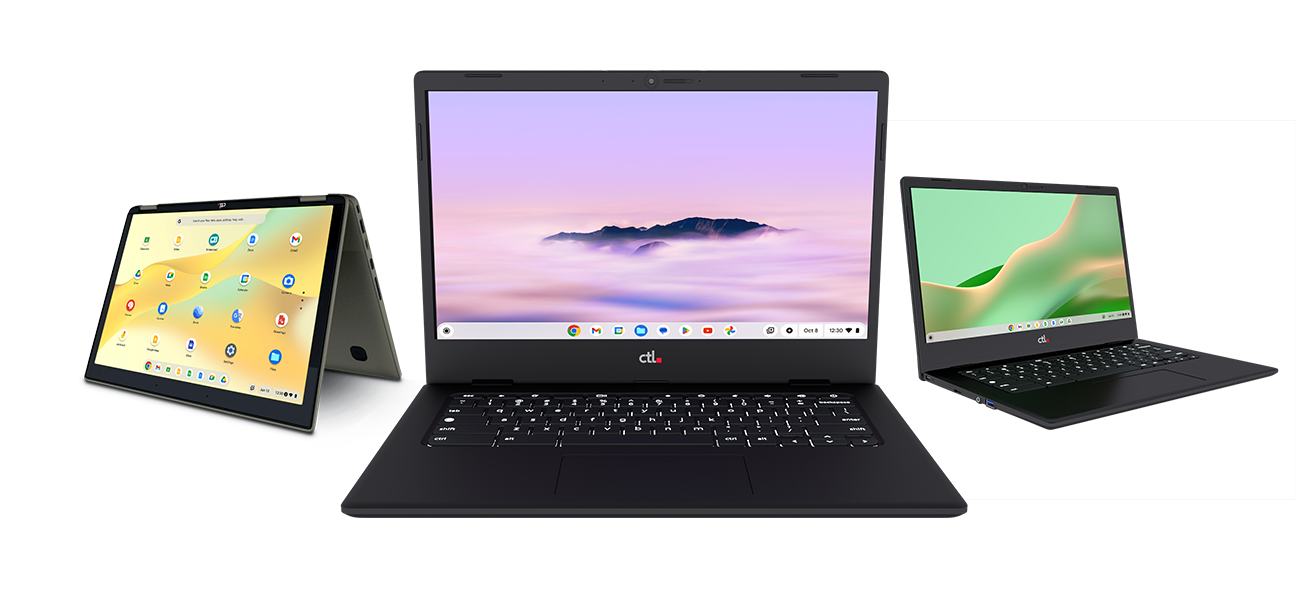
Now you can get devices, lifecycle services, and the software to manage it all from CTL, your technology lifecycle partner.

Total device visibility. Zero complexity and cost.

Meet Rocket by CTL.

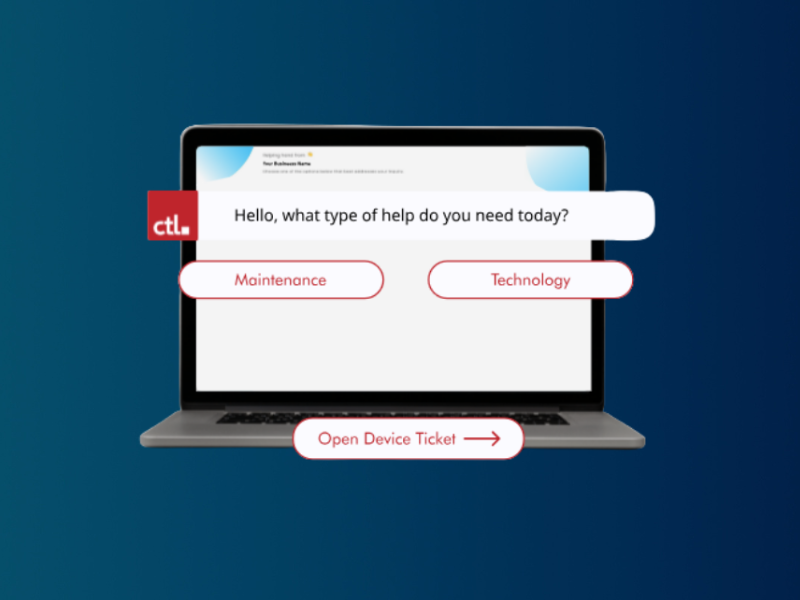
Rocket by CTL is an all-in-one IT asset management and help desk ticketing software that automates and streamlines the logistics of managing of K-12 technology.

Specifically designed for K-12 schools, it offers everything from real-time inventory auditing and automated help desk routing to seamless repair tracking. Along the way, Rocket provides the data-driven insights you need to maximize your technology investment and keep your district running smoothly.

Best of all, it's 100% free forever. No trial, no catch.

Stop managing spreadsheets and start managing your mission today with Rocket from CTL.

Why Use Rocket Asset Management Software?

Use for free, always

Receive CTL assets pre-loaded and migrate in other assets in easily

Improve device visibility and control

Save time by managing all your devices in one solution

Streamline management to reduce cost

Ensure security

Enjoy responsive customer support

Streamline communication across teams, districts, and vendors

Goodbye spreadsheets, hello productivity

Get things done faster with better insights and teamwork.

Repair tracking

  • Monitor repair status from start to finish
  • Track device issues and user damage history
  • Use in-house inventory to track parts used in repairs
  • Pull reports on common device breaks
  • Integrates with CTL's Fixably repair system

Secure data

Integrated authentication and industry standards ensure a secure environment.

Take a Tour of Rocket Asset Management Software

How does Rocket compare to other leading K-12 asset management software?

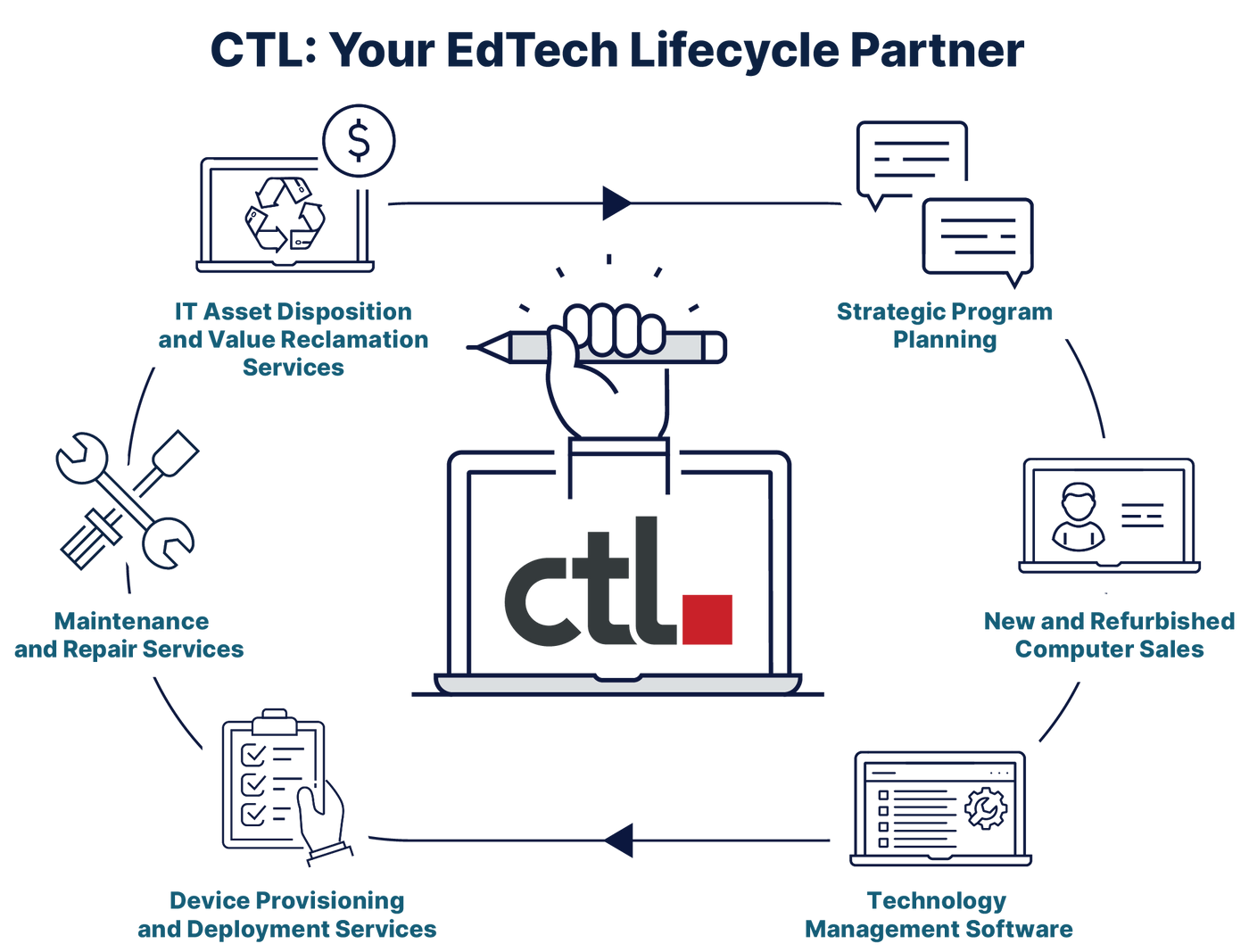
CTL: Your EdTech Lifecycle Partner

Count on CTL for a customized, service-focused experience. Only CTL delivers the OEM-expert services and support you need throughout the life cycle of your program.

Work with your solutions consultant to customize a program for your needs.

Let's Get Started!

FAQs for K-12 Rocket Asset Management Software

Section 1: About Rocket Asset Management by CTL

Rocket by CTL is free K-12 asset management and help desk software that gives school technology teams one place to manage devices, users, support tickets, repairs, audits, parts, reporting, and related workflows. It is designed specifically for schools and districts that need better visibility across their technology fleet without adding another software subscription.

Yes. Rocket by CTL is available free forever, with no trial period or required upgrade. Schools can use the platform to organize technology assets and support workflows without paying a software licensing fee or purchasing CTL devices or services.

Rocket was created to simplify device management, repair coordination, and communication for education technology programs. Making the platform broadly available helps schools reduce administrative work, improve device visibility, and get more value from their technology investments. CTL also uses Rocket as part of a larger lifecycle-focused approach to supporting K-12 technology.

No. Any eligible school or district can use Rocket, even if it does not currently purchase devices or lifecycle services from CTL. Schools receive access to the platform’s core asset management, help desk, audit, repair, and reporting capabilities without being required to buy other CTL products.

Rocket combines the functions school IT teams use most—asset tracking, help desk ticketing, repair management, audits, parts inventory, reporting, and parent billing—in one education-focused platform at no software cost. It was shaped around real district workflows and continues to evolve based on school feedback and operational needs.

Rocket can help districts track Chromebooks and other student or staff devices, along with users, locations, assignments, repair history, ticket status, parts, and lifecycle information. Schools can organize assets across buildings, rooms, grade levels, and programs to create a clearer view of their technology environment.

Rocket uses protected sign-in options, including Google or Microsoft single sign-on, and access is limited to verified school accounts. CTL positions Rocket as a secure environment for K-12 technology management; districts should still complete their own privacy, security, and vendor-review procedures before deployment.

No. The source FAQ states that individual contact information and Rocket data are not sold. Any use of aggregated learnings or case-study information should remain protected and confidential, subject to the applicable agreements and privacy documentation.

Rocket generally receives planned improvements on a recurring basis, with urgent fixes released when needed. Updates may include security enhancements, workflow improvements, and new functionality influenced by feedback from schools and technology teams.

Schools can create a Rocket account, configure their organization, and begin importing devices and users. A successful launch usually starts with clean inventory data, clearly defined school locations and user fields, and a plan for ticket, repair, audit, and reporting workflows.

Section 2: Integrations and Data Migration

Yes. A district can use Rocket as its primary platform or as a complementary tool for specific needs such as repair tracking, auditing, parts inventory, or help desk workflows. This makes it possible to adopt Rocket in phases instead of replacing every existing system at once.

Rocket supports CSV-based imports and templates for common device, user, ticket, building, and help desk data. Export information from the current system, map the columns to Rocket fields, upload the file, and allow the import to process in the background.

Rocket supports a Google Admin Console connection for importing Chromebook device data and an Incident IQ integration for synchronizing device and ticket information. Integration capabilities can change over time, so CTL should confirm the current feature set before publishing or promising a specific workflow.

The Google Admin Console integration can reduce manual data entry by bringing managed Chromebook information into Rocket. This helps school IT teams create a more current device inventory and connect Chromebook fleet data with assignments, tickets, repairs, audits, and reporting.

Begin in Rocket’s Import/Export area and select the option to import Google devices. In Google Admin, review the application under Security, API Controls, and App Access Control, then configure the approved access level and scopes required by the current Rocket setup instructions. Because Google’s interface and permissions can change, publish this answer with an updated step-by-step guide or support link.

Step 1: Go to Import/Export and click “Import your Google Devices” 

Step 2: Select “Specific Google Data”   

Step 4: Select Configure Access 

Step 5: Go to admin.google.com 

Security → API Controls → App Access Control 

The Incident IQ integration is designed to synchronize device and ticket information with Rocket. According to the source FAQ, tickets can populate when a device is attached, synchronization occurs daily, and resolving a Rocket ticket may add a note without automatically closing the corresponding Incident IQ ticket.

The source FAQ indicates that the integration currently syncs all devices and tickets in Incident IQ rather than allowing granular selection. Because the original answer is incomplete and the capability may have changed, CTL should verify this behavior with the product team before publishing.

Section 3: Features, Workflows, and Troubleshooting

Users can rearrange dashboard charts with the Arrange control and narrow the displayed information with filters. Depending on the available fields, teams can review data by date range, grade, building, ticket status, or other operational categories.

Open Manage Devices under Devices/Users, select Add Device, and enter the required serial number. Add any additional information needed for the district, such as asset tag, model, assigned user, building, room, condition, or status.

Use the Create Ticket button and select an existing device, or open Manage Devices and choose the ticket action for the appropriate asset. A device highlighted in red may already have an active ticket, helping staff avoid duplicate requests.

A ticket in Repaired status may still count as open until the final closeout steps are completed. Check Repaired Tickets and change the status to Closed when the device has been reassigned or the workflow is complete. For billed repair batches, marking the batch as paid may also close the related tickets.

School Parts are items maintained in the district’s own inventory, while Master Parts come from the broader preconfigured parts catalog available in Rocket. Schools can add custom parts, select parts from the master list, track quantities by location, and disable the master inventory view in Settings when they only want to see local stock.

Open Ship Devices, select the relevant devices or tickets, and create a batch. Enter the requested package details, confirm the shipping address and box information, and generate the shipping label after reviewing the shipment.

Rocket provides flexible CSV imports that let administrators map columns to platform fields and skip information they do not need. It also offers templates for devices, users, tickets, buildings, and advanced help desk configuration. Keep template headers unchanged and include all fields marked as required for the selected import.

Open the profile menu, select Settings, and locate the school-specific Support Ticket URL. The same settings area can be used to configure Google or Microsoft single sign-on for help desk submissions when those options are enabled.

Open the profile menu and select Service Profile. Under Shipping Information, update the primary address, choose its intended use, and add alternate addresses when different locations are needed for device shipments or billing.

Open Settings from the profile menu and turn off the Master Inventory option. This limits the parts view to items held in the school or district inventory, making local repair stock easier to manage.

Use the Archive Users option in Settings to select the graduating grade and remove those users from the active Rocket environment. Confirm the selected grade carefully before completing the action because the source FAQ describes this process as a full deletion rather than a reversible archive.

First clear the browser cache and perform a hard refresh. On Windows, hold Ctrl while selecting Refresh; on many browsers, Ctrl+Shift+R also reloads the page without using cached files. For best results, do this immediately after signing in and before navigating through the portal. If the issue continues, document the browser, time, and error message before contacting support.

Yes. Rocket centralizes device records, user assignments, locations, tickets, audits, repairs, and reports so technology teams can reduce reliance on disconnected spreadsheets. Districts can still export data when a spreadsheet is useful for analysis or recordkeeping.

Rocket supports core Chromebook lifecycle workflows by connecting inventory data with assignments, audits, support tickets, repair history, parts, reporting, and device status. When combined with CTL’s devices and lifecycle services, schools can manage more of the technology journey through a coordinated program.

Yes. Schools can organize audits by building or room, scan asset tags or serial numbers, identify misplaced or incorrectly assigned devices, and export results for follow-up. This can improve inventory accuracy before refresh cycles, budget planning, insurance reviews, or year-end reconciliation.

Yes. Rocket can associate issues, tickets, repairs, and damage history with the relevant device and user records. This gives technology teams a clearer record of repeated failures, common break types, repair costs, and operational trends.

Yes. Rocket provides dashboards and reports for devices, tickets, statuses, batches, breakage rates, invoices, and technician activity. Filters help teams focus on a particular timeframe, grade, building, or workflow.

Rocket includes parent-billing functionality that can mark repairs as student-billable, record costs, generate invoices, and track payment status. Districts should align the workflow with their own policies, fee schedules, approval rules, and student data requirements.

Rocket is designed for K-12 technology directors, district IT teams, help desk staff, device coordinators, repair technicians, school administrators, and other employees responsible for managing student and staff technology assets.

K-12 asset management software helps districts improve inventory accuracy, reduce lost devices, speed up support, document repairs, plan refresh cycles, monitor costs, and make better technology decisions using centralized data.