

Beginning-of-year Chromebook deployment is one of the busiest operational periods for school technology teams. Thousands of devices may need to be inspected, configured, assigned, distributed, and documented within a limited timeframe.
A rushed deployment process can lead to incorrect device assignments, missing chargers, outdated inventory records, long distribution lines, unresolved damage, and unnecessary help-desk requests during the first weeks of school.
The most effective Chromebook deployments begin well before students arrive and treat device distribution as a structured, trackable workflow rather than a one-day event.
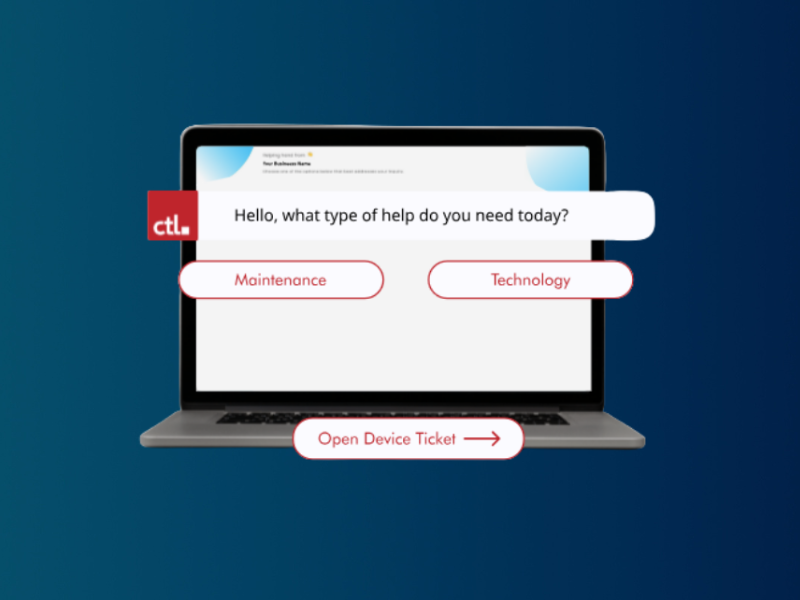
Use Rocket by CTL to organize Chromebook assignments, help-desk tickets, and technology asset records before the school year begins.
Download the K-12 Technology Asset Management Checklist and use Rocket by CTL to simplify your district's device management process.
Four to Six Weeks Before Deployment
Confirm deployment dates with district administrators, school leaders, registrars, teachers, and support staff. Review expected enrollment, grade-level device requirements, new student counts, staffing changes, and the number of devices needed at each school.
Use your asset management system to identify Chromebooks that are available, under repair, awaiting parts, missing, retired, or still assigned to former students or staff members.
Compare available inventory against expected demand so your team can address shortages before deployment begins. Include loaner devices and spare inventory in your planning.
This is also the time to finalize student and family communications. Explain distribution dates, acceptable-use requirements, insurance or protection plans, charger expectations, and any forms that must be completed before a device is issued. Prepare translated communications when needed.
Two to Three Weeks Before Deployment
Begin preparing devices for student use. Confirm that each Chromebook is properly tagged, enrolled, updated, charged, and matched with the correct accessories.
Inspect devices for:
- Cracked screens
- Damaged hinges
- Missing keys
- Charging-port issues
- Battery problems
- Damaged cases
- Missing or unreadable asset tags
- Outdated assignment or location information
Route damaged devices for repair immediately rather than placing them back into deployment inventory.
Train staff members who will assist with distribution. Review the check-out process, scanning procedures, student verification steps, accessory tracking, exception handling, and escalation procedures.
Test barcode scanners, printers, labels, carts, charging equipment, Wi-Fi access, and any forms or systems that will be used during distribution.
Verify and Clean Your Inventory Data
Accurate deployment begins with accurate records. Before assigning devices, review your inventory for duplicate serial numbers, missing asset tags, outdated school locations, inactive users, incomplete device statuses, and unresolved assignments from the previous year.
Every deployment-ready Chromebook should have a complete record that includes:
- Asset tag
- Serial number
- Device model
- School or building
- Current condition
- Availability status
- Warranty information
- Charger or accessory information
- Previous assignment, when applicable
Cleaning these records in advance reduces confusion when devices are issued to students.
Design an Efficient Check-Out Flow
A structured distribution process helps schools issue devices quickly without sacrificing inventory accuracy.
A practical Chromebook check-out sequence may include:
- Verify the student’s identity and enrollment.
- Confirm that required forms or agreements are complete.
- Scan the student or user record.
- Scan the Chromebook asset tag or serial number.
- Assign the device in the asset management system.
- Confirm the device condition.
- Issue and document the charger, case, or other accessories.
- Provide login or setup instructions.
- Record the completed transaction.
Separate routine assignments from exceptions so most students can move through the process efficiently.
Students with enrollment discrepancies, missing forms, accessibility requirements, damaged devices, or special program needs should be directed to a separate support station.
Match the Correct Chromebook to the Correct Student
Do not rely on handwritten labels or manually entered serial numbers when assigning devices. Scan the Chromebook’s asset tag or serial number and confirm that the assignment appears correctly in your asset management system.
A single incorrect assignment can create multiple problems later. One student may appear to have the wrong Chromebook, while another device may be classified as missing or unassigned.
Update the record during the transaction rather than collecting handwritten notes and entering assignments later. Real-time updates provide immediate visibility into which students have received devices and which devices remain available.
Use Consistent Device Condition Standards
Before issuing a Chromebook, document its current condition. This creates a reliable baseline for future repairs, exchanges, and end-of-year collection.
Create simple, clearly defined condition categories such as:
- New
- Good
- Fair
- Minor cosmetic wear
- Damaged
- Under repair
- Not deployment-ready
Train staff to evaluate screens, keyboards, hinges, ports, cases, labels, and chargers consistently. Photograph existing damage when district policy requires additional documentation.
Consistent condition records help prevent disputes and make it easier to determine whether damage occurred before or after the device was assigned.
Track Chargers and Accessories
Chargers, cases, styluses, hotspots, and adapters represent a significant replacement expense. Decide in advance which accessories will be assigned individually and which will be tracked by quantity.
When accessories are individually assigned, connect them to the student or device record during check-out. When they are tracked in bulk, maintain accurate counts by school or distribution station.
Use clearly labeled bins and staging areas to separate:
- Ready-to-issue chargers
- Damaged chargers
- Replacement accessories
- Incorrect charger models
- Accessories awaiting inspection
Documenting accessories during deployment makes end-of-year reconciliation much easier.
Plan for New Students and Schedule Changes
Chromebook deployment does not end after the first day of school. New enrollments, transfers, withdrawals, schedule changes, and staffing updates can continue for several weeks.
Create an ongoing assignment process for students who enroll after the main distribution period. Define who is responsible for verifying enrollment, issuing the device, updating the asset record, and providing login support.
Coordinate with school office and enrollment teams so technology assignments are included in student onboarding, transfer, and withdrawal procedures.
Prepare Loaner and Replacement Devices
Set aside a clearly identified pool of loaner Chromebooks before the school year begins. These devices should be fully configured, charged, tagged, and marked as available in the asset management system.
Define how loaners will be assigned, how long students may keep them, and how the original device’s repair status will be tracked.
Without a documented loaner process, temporary devices can remain assigned indefinitely or become difficult to locate.
Establish First-Week Support Procedures
Even a well-planned deployment will generate support requests. Common beginning-of-year issues may include:
- Forgotten passwords
- Incorrect user accounts
- Wi-Fi connection problems
- Missing applications
- Damaged or nonfunctioning devices
- Incorrect device assignments
- Missing chargers
- Enrollment or access discrepancies
Create a clear process for reporting and prioritizing these issues. Consider dedicated support hours, school-based help stations, temporary staffing, or an online ticketing process during the first week.
Track recurring issues so your team can identify training gaps, configuration problems, or device-model trends.
Run Daily Deployment Reports
During the deployment period, review assignment and inventory reports each day.
Useful reports include:
- Students who have not received a Chromebook
- Devices assigned during the day
- Available deployment inventory
- Devices with no current assignment
- Duplicate or incomplete assignments
- Damaged devices removed from circulation
- Loaner devices currently issued
- Inventory remaining by school or grade level
Daily reporting allows staff to resolve discrepancies while the deployment activity is still recent.
Reconcile Inventory After Deployment
Once the primary distribution period is complete, compare expected enrollment against completed Chromebook assignments.
Review unassigned devices, students without devices, accessories issued, loaners in use, devices held for repair, and inventory remaining at each school.
Confirm that devices have not been left in temporary staging areas, carts, classrooms, or distribution stations without updated locations.
A prompt post-deployment reconciliation gives the district a reliable inventory baseline for the rest of the school year.
Turn Deployment Data Into Better Planning
Beginning-of-year data can help technology leaders improve future purchasing, staffing, and deployment decisions.
Review:
- Devices issued by grade or school
- Number of loaners required
- Damage discovered before deployment
- Accessory shortages
- Average distribution time
- Help-desk volume
- Enrollment-related device shortages
- Models with recurring setup or performance issues
These insights can help the district improve future deployments and make better use of its technology budget.
Simplify Chromebook Deployment With Better Tracking
Rocket by CTL can help K-12 teams organize device inventory, student assignments, locations, conditions, and statuses before, during, and after beginning-of-year deployment.
A centralized asset management platform gives staff a more dependable way to identify available devices, assign Chromebooks, track loaners, document condition, and reconcile inventory.
Because Rocket is free for K-12 schools, districts can strengthen their Chromebook deployment process without adding a major software expense.
FAQs
When should schools begin planning Chromebook deployment?
Schools should generally begin preparing four to six weeks before students receive their devices. This provides time to review inventory, complete repairs, confirm enrollment estimates, prepare communications, and train distribution staff.
What should be included in a Chromebook deployment checklist?
A Chromebook deployment checklist should cover inventory verification, device inspection, configuration, asset tagging, student assignments, charger tracking, check-out procedures, loaner devices, exception handling, and post-deployment reconciliation.
How can schools prevent incorrect Chromebook assignments?
Schools can reduce assignment errors by scanning both the student record and the Chromebook asset tag during distribution. The assignment should be recorded in the asset management system before the student leaves the check-out station.
Should schools track Chromebook chargers separately?
Schools should track chargers when replacement costs and accountability justify the additional process. Chargers may be assigned individually to students or tracked by quantity, school, or distribution location.
How does asset management software support Chromebook deployment?
K-12 asset management software helps schools identify available devices, record student assignments, track device condition, manage loaners, monitor inventory by location, and produce deployment reports.
Use Rocket by CTL to organize Chromebook assignments, help-desk tickets, and technology asset records before the school year begins.
Download the K-12 Technology Asset Management Checklist and use Rocket by CTL to simplify your district's device management process.