
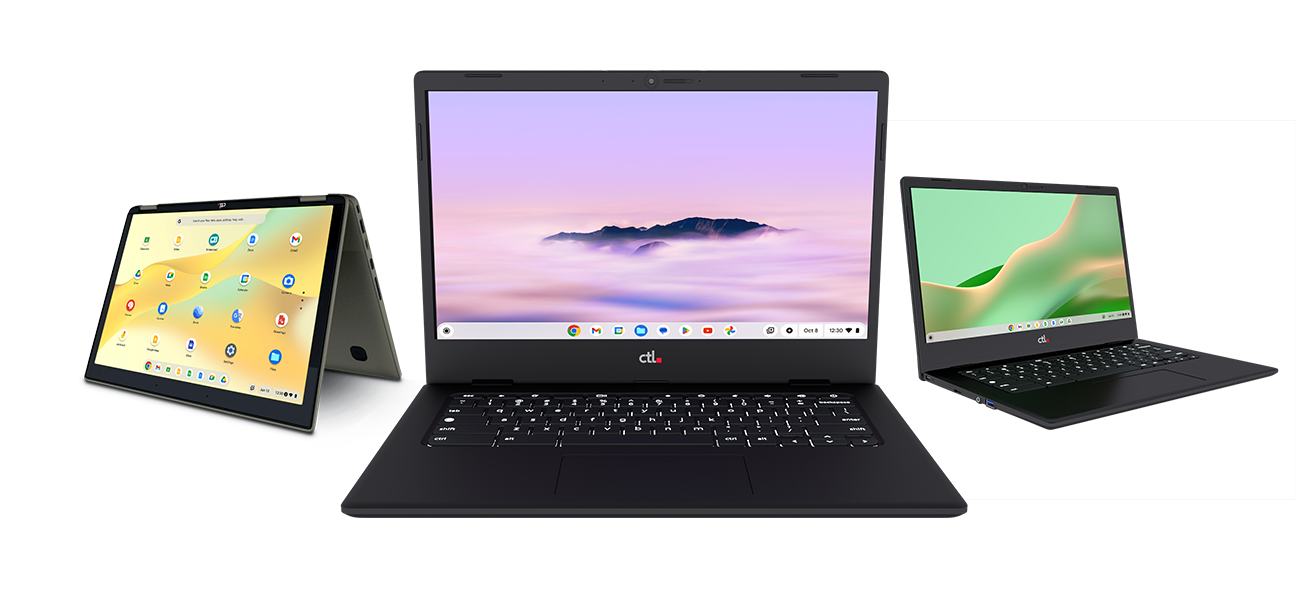


Managing school technology is no longer a simple inventory exercise. Districts may be responsible for thousands of Chromebooks, laptops, tablets, hotspots, chargers, classroom displays, and other devices distributed across multiple buildings. Every asset affects student access, instructional continuity, cybersecurity, budgeting, and staff productivity.
A dependable K-12 technology asset management process gives school leaders a clear answer to five essential questions: What technology do we own? Where is it? Who is using it? What condition is it in? When should it be repaired, reassigned, or replaced? The following information and downloadable checklist can help your district create a more accurate and sustainable process.
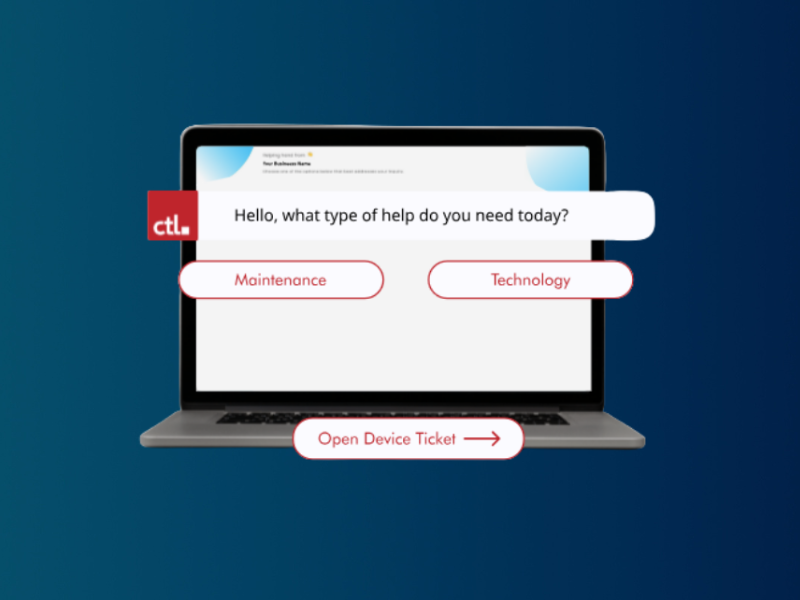
Download the K-12 Technology Asset Management Checklist and use Rocket by CTL to simplify your district's device management process.
Learn more about Rocket by CTL and sign up for your free account.
1. Build a Centralized Inventory
Every technology asset should be recorded in one central system rather than scattered across spreadsheets, email threads, paper forms, and individual staff files. At minimum, include the asset tag, serial number, model, device type, purchase date, funding source, warranty status, assigned user, location, condition, and current status.
A centralized record reduces duplicate work and makes it easier to answer questions during audits, student transfers, repair requests, and budget planning. There are many paid, such as Incident IQ, or even free K-12 asset management software programs, such as Rocket by CTL, to make building a centralized inventory easy.
2. Standardize Asset Tags and Naming
Use a consistent tagging system across schools and departments. Avoid creating separate naming conventions for each building unless those conventions are documented and searchable. A standard approach makes scanning, reporting, reassignment, and replacement planning much easier as the district grows.
3. Track Every Assignment and Transfer
A device record should show who currently has the asset and when the assignment occurred. Establish a repeatable workflow for new student enrollment, staff onboarding, student withdrawal, school transfers, temporary loaners, and device returns. Assignment history is especially useful when investigating lost devices or resolving conflicting records. K-12 asset management software can help you easily keep track.
4. Record Condition and Damage Consistently
In your device management software such as Rocket by CTL, create simple condition categories such as new, good, fair, damaged, under repair, retired, and missing. Define what each category means so staff members evaluate devices consistently. During check-in, document cracked screens, missing keys, damaged hinges, charger issues, cosmetic wear, and other problems. Photos can help support repair decisions and parent or student communications.
5. Maintain Repair and Warranty Histories
A repair history, especially one that is encapsulated in K-12 asset management software such as Rocket by CTL, helps IT teams identify recurring failures, high-cost models, and devices that should be replaced instead of repaired again. Record the date, issue, repair action, parts used, cost, technician or vendor, and whether the work was covered by warranty. This information supports better purchasing and refresh decisions.
6. Schedule Routine Inventory Audits
Do not wait until the end of the school year to discover missing or inaccurate records. Conduct smaller audits throughout the year. Quarterly spot checks, building-level reviews, and exception reports can identify unassigned assets, duplicate records, missing devices, and outdated locations before they become larger problems. Use your K-12 asset management software to document your findings.
7. Plan the Full Device Lifecycle
Track more than the original purchase date. Record the expected useful life, warranty expiration, repair frequency, operating system support, and planned replacement year. Lifecycle visibility enables technology and finance leaders to forecast refresh costs instead of reacting to widespread device failures.

8. Prepare Early for Collection and Deployment
Successful Chromebook collection begins weeks before the final day of school. Confirm assignments, communicate expectations, prepare scanning stations, define damage procedures, and create separate workflows for returned, missing, damaged, and repair-ready devices. After collection, update records immediately so summer repair and redeployment work begins with accurate information.
9. Create Reports for Different Stakeholders
IT teams need detailed operational reports, while school administrators and finance leaders need concise summaries. Useful reports, typically found in K-12 asset management software, include missing devices, unassigned inventory, repair backlog, parts usage, help desk tickets closed, warranty expirations, device age, replacement forecasts, and inventory by school, building, or OU. Build a reporting routine that supports both daily decisions and long-term planning. When possible, use K-12 asset management software, like Rocket by CTL, to automate these reports.
10. Use a System Built for K-12 Workflows
As inventory grows, dedicated asset management software can reduce manual updates and improve visibility. Rocket by CTL is available free to K-12 schools, including organizations that are not CTL customers. It provides schools with a practical way to organize technology assets without relying entirely on disconnected spreadsheets.
Final Thoughts
Strong asset management protects district resources and helps students and educators receive working technology faster. Start with accurate records, consistent workflows, and regular audits. Then use the data to improve repairs, budgeting, collection, and refresh planning.
Download the K-12 Technology Asset Management Checklist and use Rocket by CTL to simplify your district's device management process.
Learn more about Rocket by CTL and sign up for your free account.